❓ What Is This
This post covers how to display edge length in Blender.
🪴 Environment
- Blender 4.1.1
- Apple Silicon M1 16GB
- macOS 14.5 Sonoma
Date tested: 2024/08/24
🛠️ How To
The MeasureIt Add-on
This is the easiest way to get the total length of a set of edges.
You don't need to download anything special either.
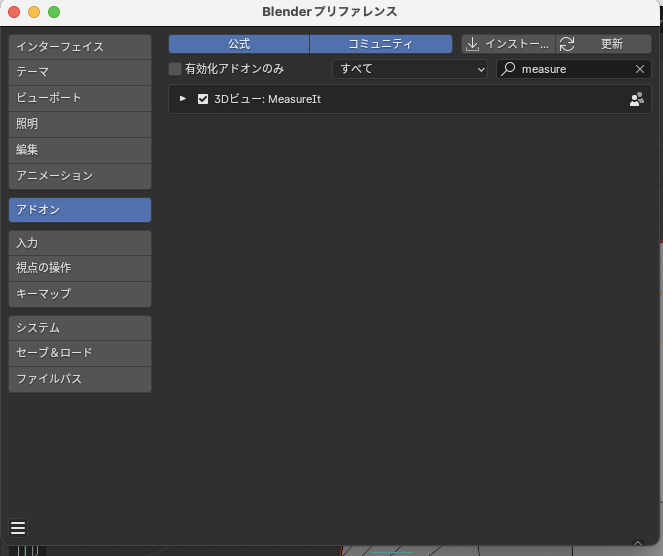
Open Preferences.
Select the Add-ons section and type "MeasureIt" into the search box.
Once you find MeasureIt, check its checkbox and close the Preferences window.
A new MeasureIt Tools tab should now appear in the Properties shelf on the right — expand it.
Select the edges you want to measure, choose a sum group (something like "a" is fine), then click the Segment button.
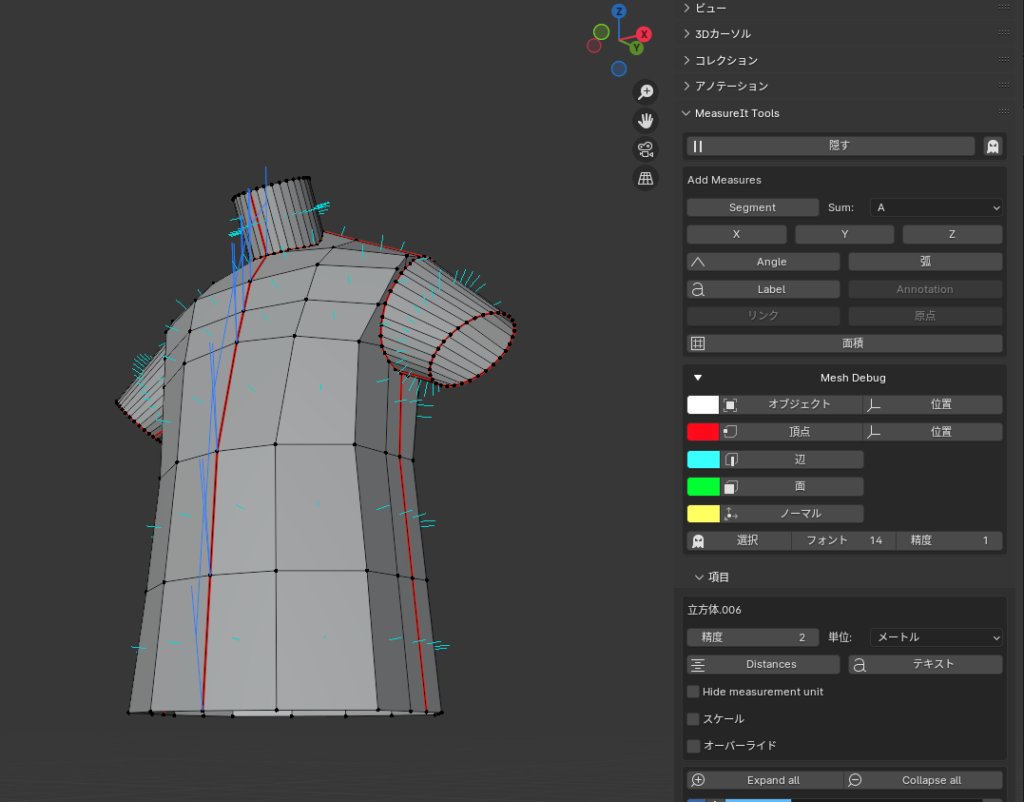
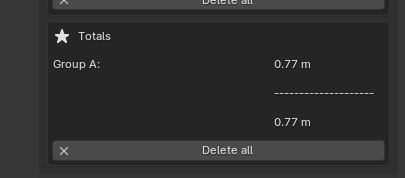
Further down, you'll find ⭐️ Totals, showing the sum for what you just clicked Segment on — something like Group A: 0.77m.
Displaying the Length of a Selected Edge (No Add-on)
This is the easiest way to measure a single edge's length.
First, switch to Edit Mode.
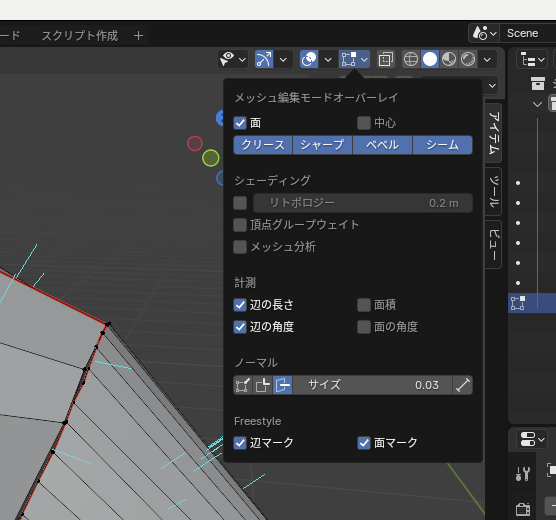
Click the "Mesh Edit Mode" button in the top bar (see the image below).
There's a "Measurements" section in there — check the "Edge Length" and "Edge Angle" checkboxes.
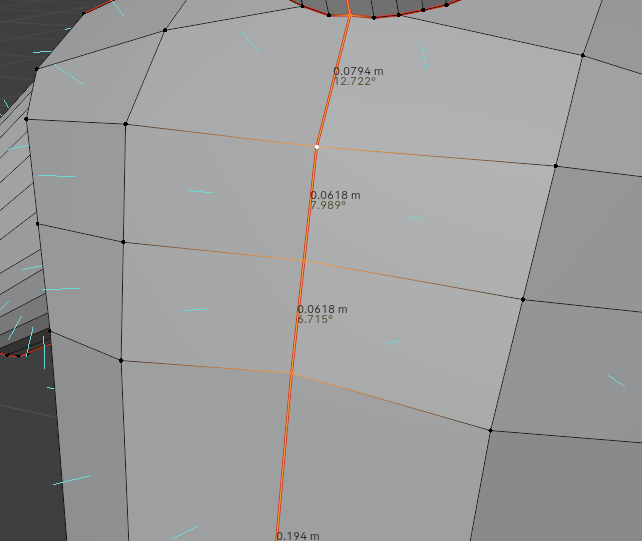
The length now shows up right on each edge, like this.
This is quick and easy, but it won't show you a total length.
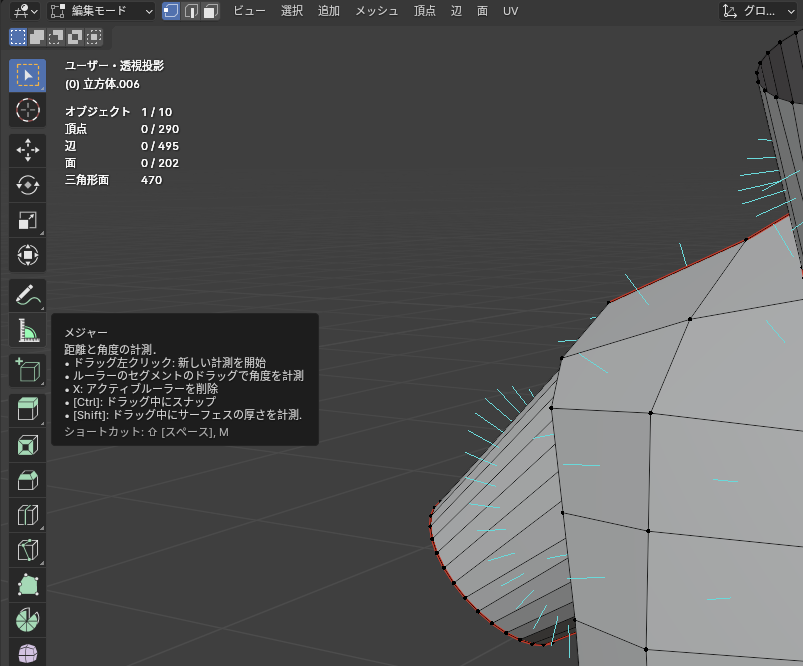
The Measure Tool (No Add-on)
This lets you measure freely, but it's clunky to use, so I personally don't reach for it much.
Select the Measure tool.
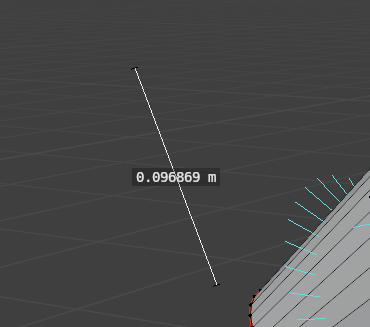
Drag to draw a line.
You can erase a line you drew with the Measure tool by pressing the "X" key.