What This Post Is About
This is for anyone who just did a fresh Windows install, picked up a new Windows machine, or made the jump from Mac to Windows.
Don't take this too literally —
just read it with the mindset of "huh, so that's one way to do it."
Environment
- Windows 10 Pro
- Alien X51
How I Did It
Rather than pulling the SSD out of my old computer and transplanting it into the new PC,
I think doing a fresh install is the better move.
Windows' flexibility means it has to work across all kinds of hardware configurations, which brings its own quirks,
so unless you enjoy the hassle of cleaning up old drivers,
a fresh install is the way to go.
As a rule, keep anything work-related in Dropbox,
and if you game, it's smart to put that on a separate disk.
(Running everything off one SSD and splitting it into partitions is something I really can't recommend, all things considered.)
Installing for Those Who Can't Stand Windows' Japanese Fonts
Windows looks less polished than Mac.
I think most of that impression comes down to the fonts.
If that resonates with you,
choose English when generating the install ISO.
If you switch to Japanese after installing, Japanese text can end up lingering in places like the settings menu, so if you'd rather avoid seeing Japanese fonts as much as possible, just go with English from the start.
In particular, MS Gothic and Meiryo — the Japanese fonts shown by default as system fonts — don't strike me as fonts suited to today's high-resolution displays.
Installing the Chipset Driver
Install the chipset driver that matches your PC's configuration.
Making Apps Easier to Manage with Choco
For package management, install Chocolatey — the Windows equivalent of Mac's Homebrew — before anything else.
Using it means you don't have to visit every tool's web page one by one during setup, which is a huge time-saver.
First, open PowerShell with administrator privileges.
Press the shortcut below and a PowerShell (Admin) option will show up, so open it with admin rights.
win + xInstall chocolatey.
Chocolatey Software | Installing Chocolatey
Once you visit this page, you'll see this:
Set-ExecutionPolicy Bypass -Scope Process -Force; [System.Net.ServicePointManager]::SecurityProtocol = [System.Net.ServicePointManager]::SecurityProtocol -bor 3072; iex ((New-Object System.Net.WebClient).DownloadString('https://community.chocolatey.org/install.ps1'))so go ahead and enter it into PowerShell.
Picking the Software You Want
https://community.chocolatey.org/packages
This URL lets you browse the full package list.
- Chrome
- Google Japanese Input
Make sure to select these. You can keep clicking the plus button to add as many more as you want. (After that, it's up to your own taste.)
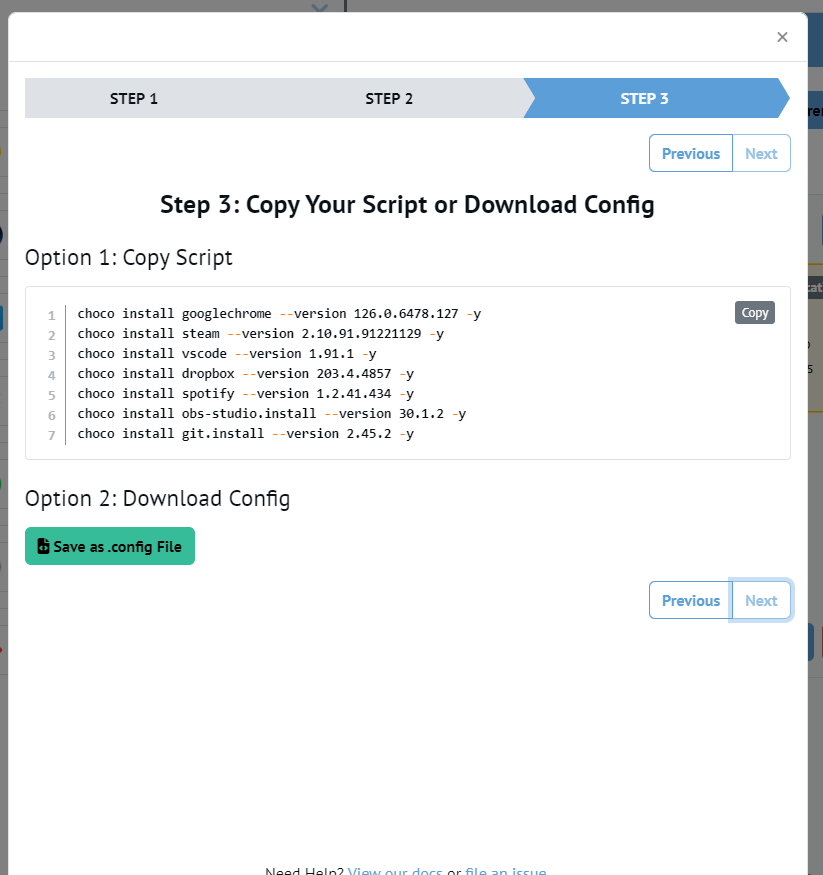
Once you've made your picks, open the BUILDER tab and click the "Generate Script" button.
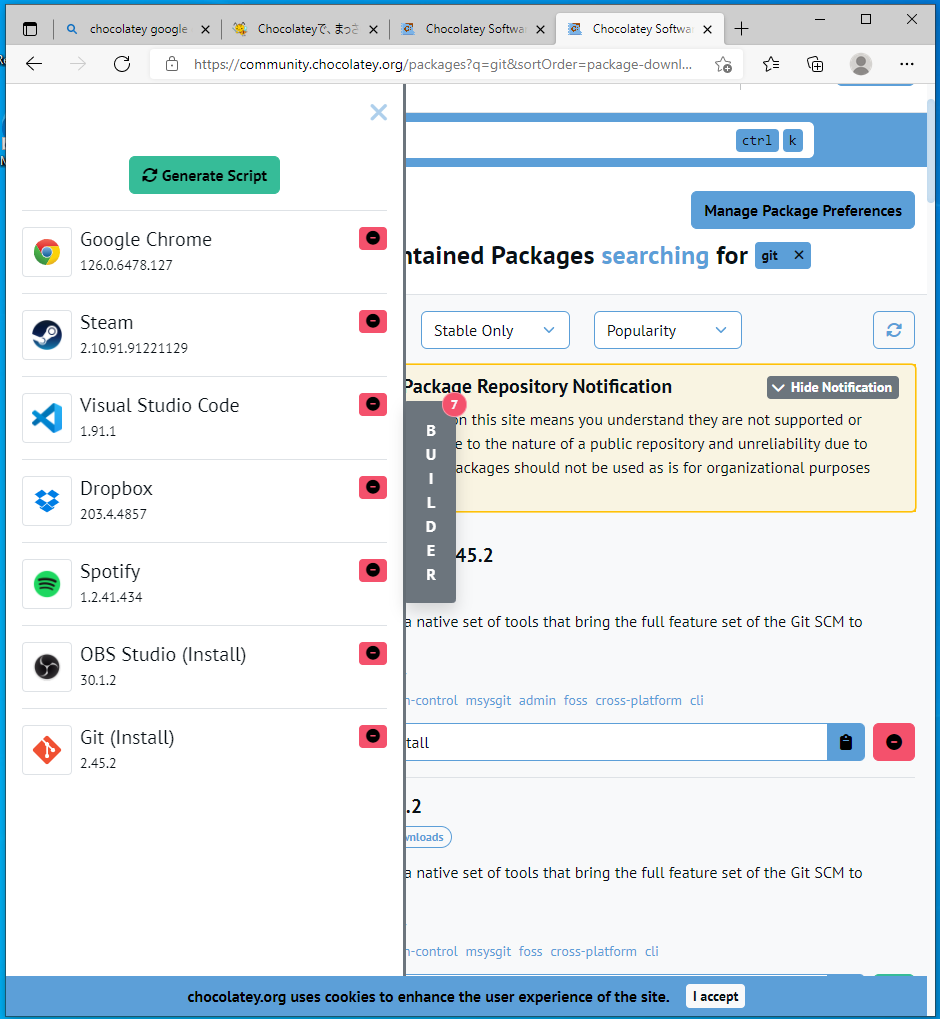
After that, you can just keep clicking Next with no issues.
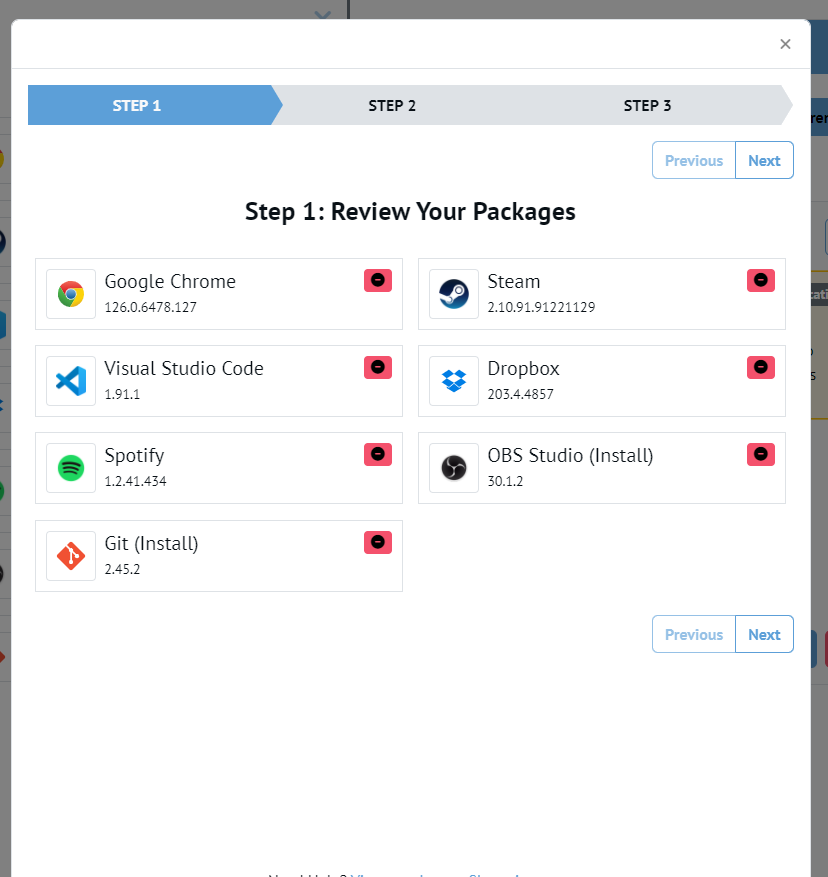
Finally, you should see a Copy Script option show up.
Paste that into PowerShell and you're good to go.