
I recently received an Apple Silicon M1 iMac as a hand-me-down.
When I went to reset it, an error occurred during the OS installation and it ended up unable to boot.
This post covers how I fixed it.
Environment
The broken iMac
- Apple Silicon M1
- Ventura
- 16GB
The MacBook Air used for the recovery
- Apple Silicon M1
- Sequoia 15.0.1
- 16GB
Where the Problem Happened, and the Error Screen
When I pressed the [Reinstall macOS Ventura] button and moved on to the install screen, I kept getting an error screen like the one below.
mac インストールの準備中にエラーが起きましたThis popup appeared and the OS install never completed. It happened the same way every time, and I also tried First Aid and erasing the disk in Disk Utility, but I kept hitting the exact same error no matter what.
I didn't take a screenshot of my own error at the time, so here's an image from someone with the same issue on Yahoo Chiebukuro (Japan's Q&A site), quoted for reference.
https://detail.chiebukuro.yahoo.co.jp/qa/question_detail/q14292903294
There were people with the same symptom on Apple's support page too.
https://discussionsjapan.apple.com/thread/255485243?sortBy=rank
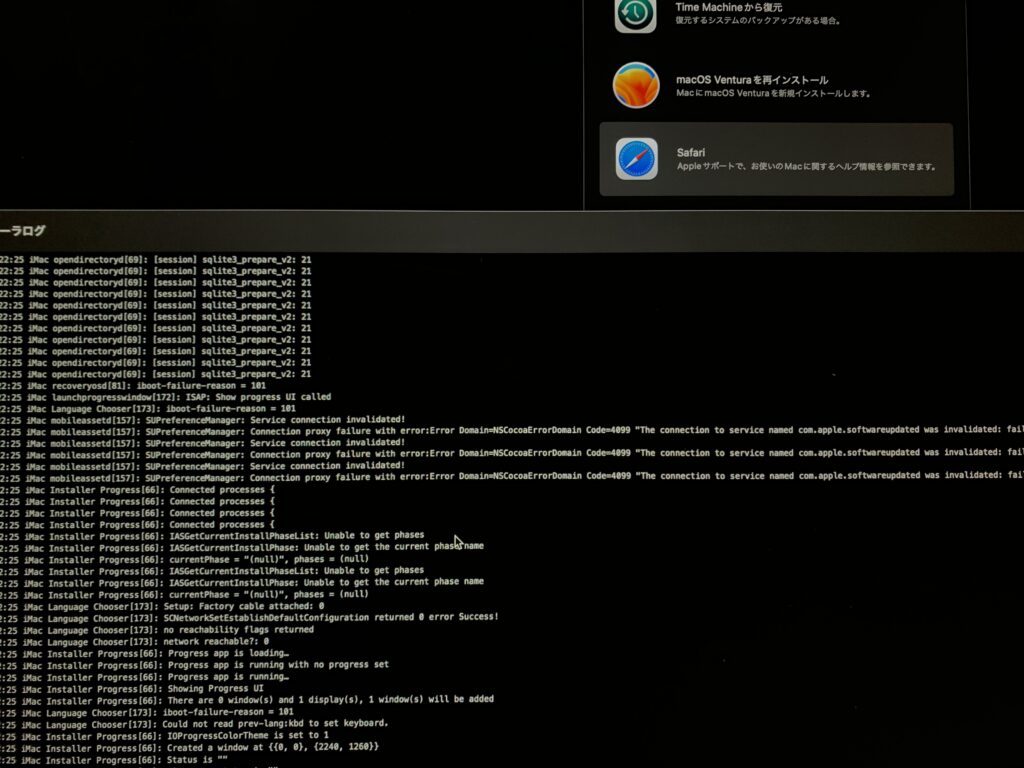
For reference, here's the error log. It didn't actually help me solve the error, so I'll just share the image without much comment.
What Actually Fixed It: DFU
DFU (Device Firmware Update) is a mode for updating or repairing the firmware on Apple devices.
This method works if you have a mac that's working normally on hand.
0. Prepare a Working Mac and Install Apple Configurator
In my case, I used an Apple Silicon M1 MacBook Air.
Install an app called Apple Configurator on this MacBook beforehand.
https://apps.apple.com/jp/app/apple-configurator/id1037126344?mt=12
1. Working with Disk Utility
From the iMac's recovery screen, select Disk Utility.
Next, you'll see a "Macintosh HD" entry — delete it.
2. Connect the iMac (the Broken One) and the MacBook (the Working One)
Connect the iMac and the MacBook with a cable.
I confirmed this worked using the C-to-C charging cable that came with the MacBook.
3. Unplug the iMac's Power Cord
Shut down the iMac and unplug the power cord.
4. Enter DFU Mode
While holding down the power button, plug in the power cable.
This is not about holding the power button down for a long time. I'd mistakenly assumed the whole time that it meant a long press 😭
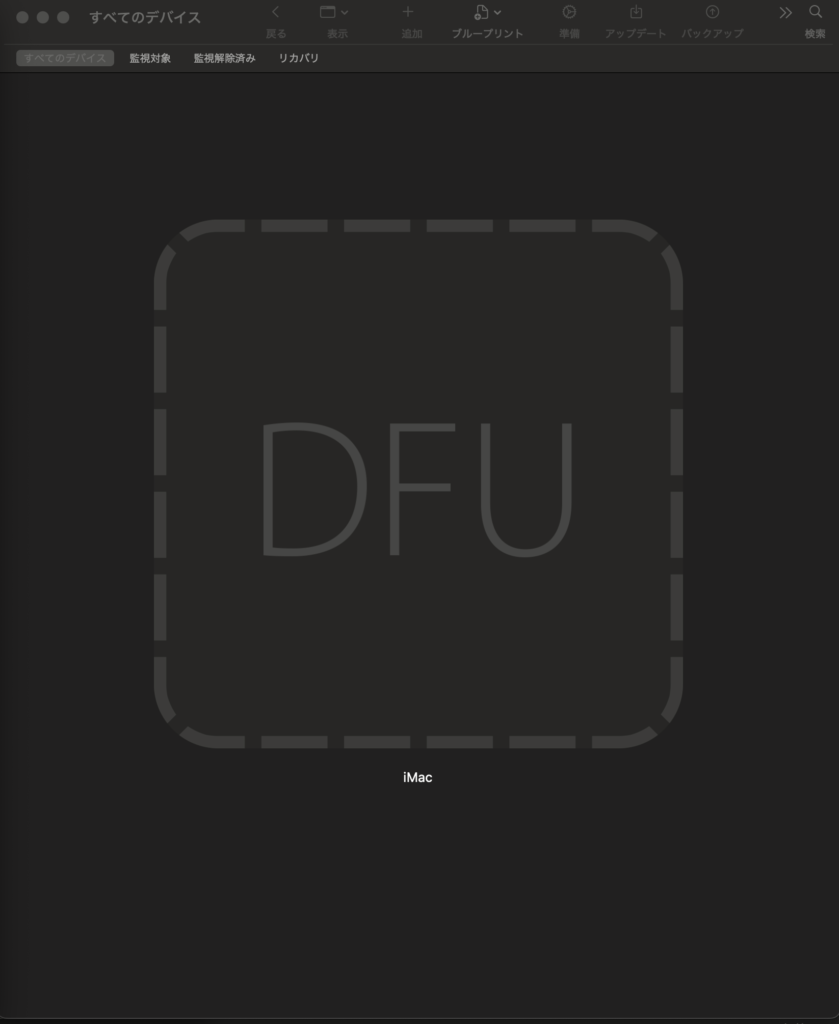
Once it's in DFU mode, the iMac's own screen stays completely dark, but a [Allow Accessory to Connect] dialog should pop up on the MacBook Air (the working one)!
In the Apple Configurator app on the MacBook Air, you should see a DFU icon appear like the one below.
5. Recover from Configurator
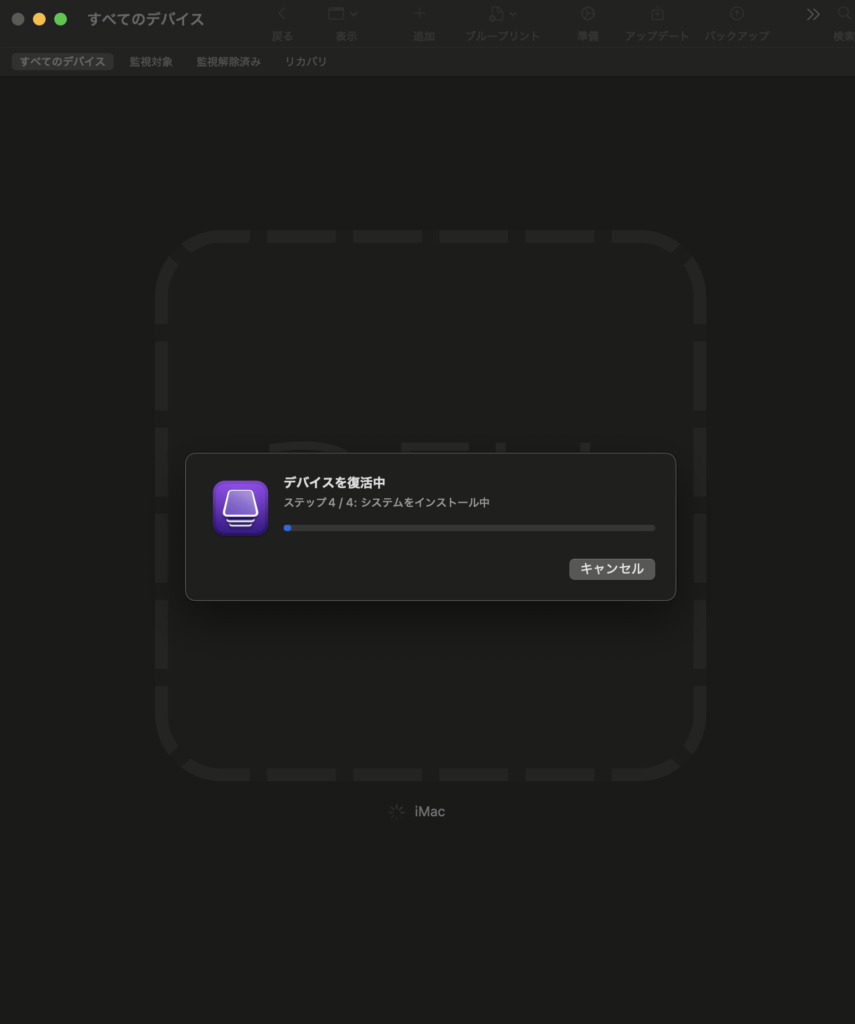
Right-click on the DFU icon.
Then click the [Restore] option.
A confirmation popup will appear, so just keep clicking [OK] and you're good!
6. Reinstall the OS on the iMac
After this, the iMac should recover!? Or so I hoped.
In my case, it showed the following.
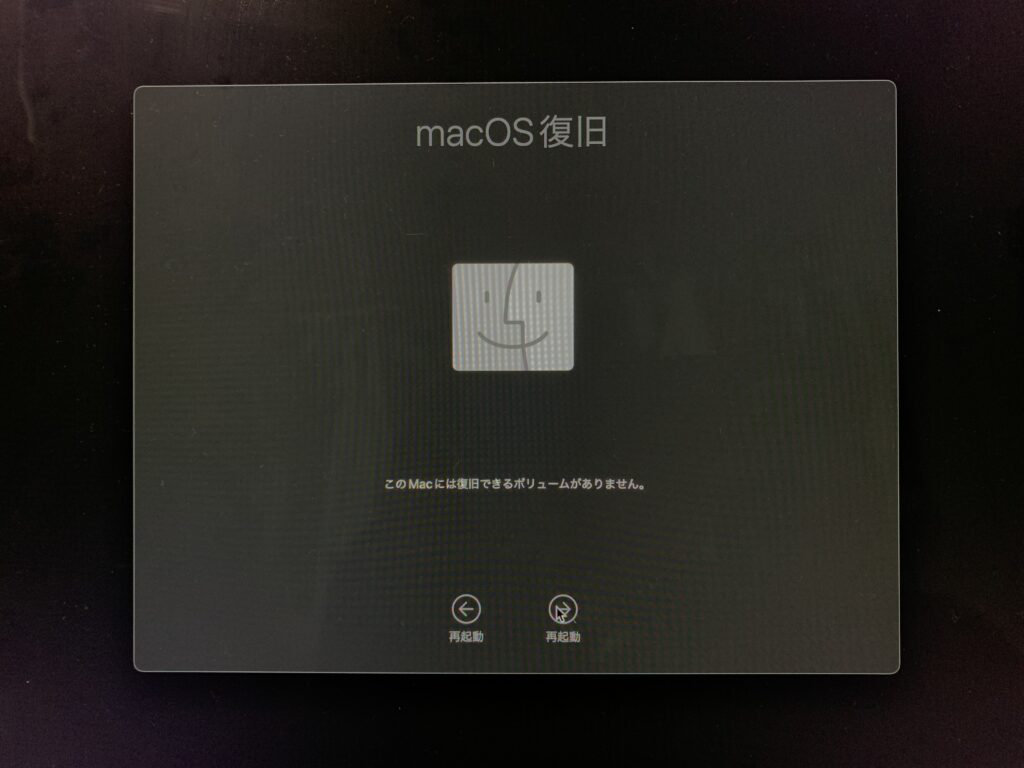
When I restarted following the on-screen instructions
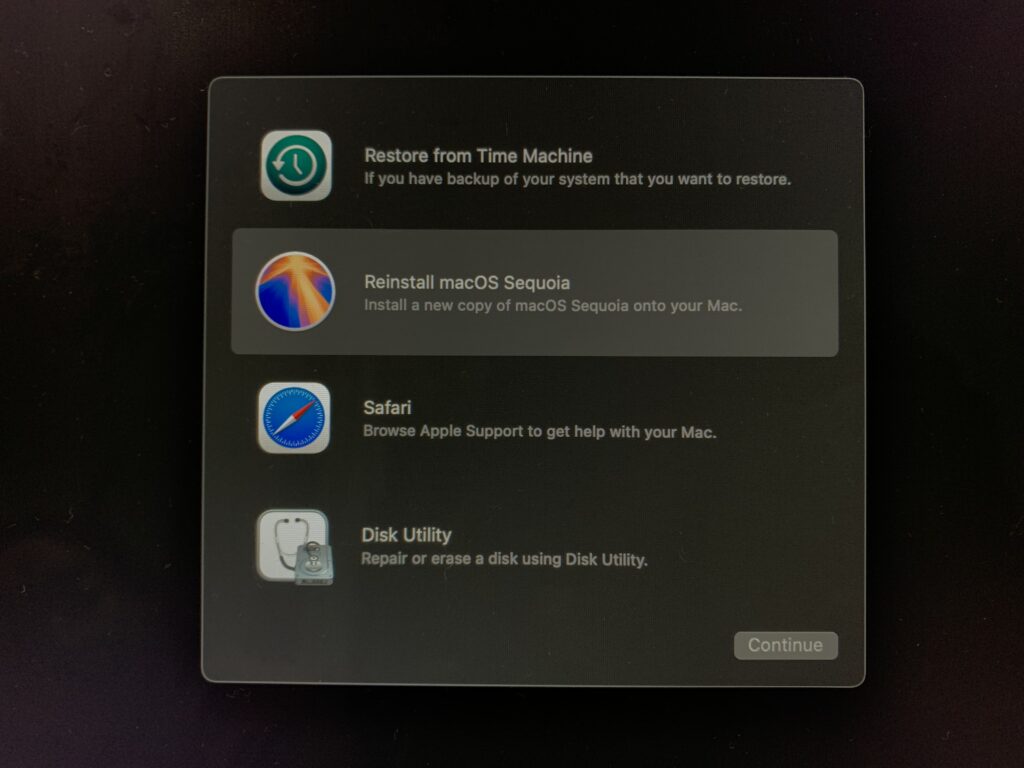
There it was: "Reinstall macOS Sequoia"!!!
Before doing all this, it had only ever shown "Reinstall macOS Ventura", so this confirmed that the operation from the external Mac had actually worked!
References
About Apple Configurator 2
https://support.apple.com/ja-jp/guide/apple-configurator-2/apdd5f3c75ad/mac
Apple's official page on recovery