
Building Unity UI is such a hassle.
For web and mobile apps, you can use a UI library like MUI.
I'd been looking for something similarly simple and free for Unity.
This time, here are my notes on using Shapes 2D, which has been working nicely for me.
↓ Link to Shapes 2D on the Asset Store
https://discussions.unity.com/t/free-shapes2d-procedural-2d-shapes-for-sprites-and-ui/627914
Steps
You can check Shapes 2D's official documentation here.
https://sub-c.org/Shapes2D/documentation
The Default Button
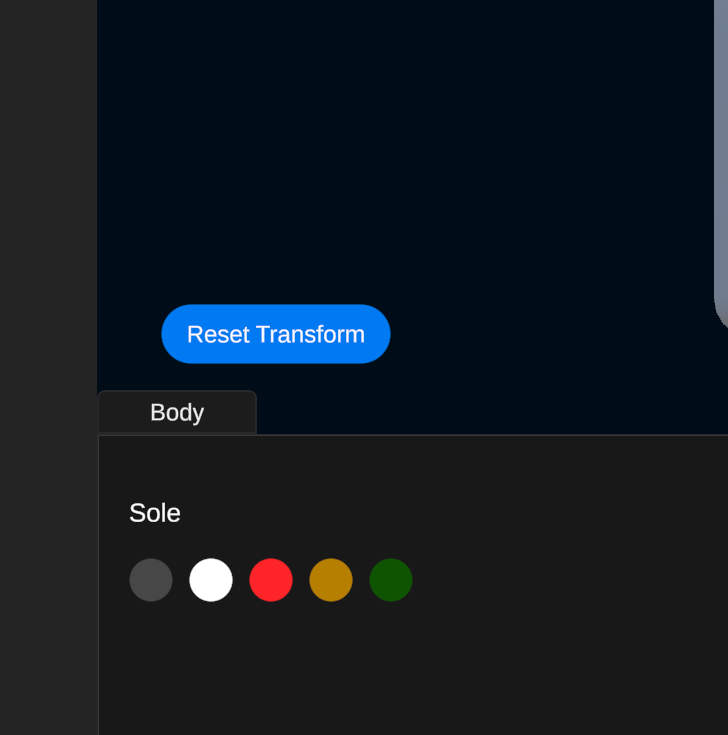
Here's the starting state first.
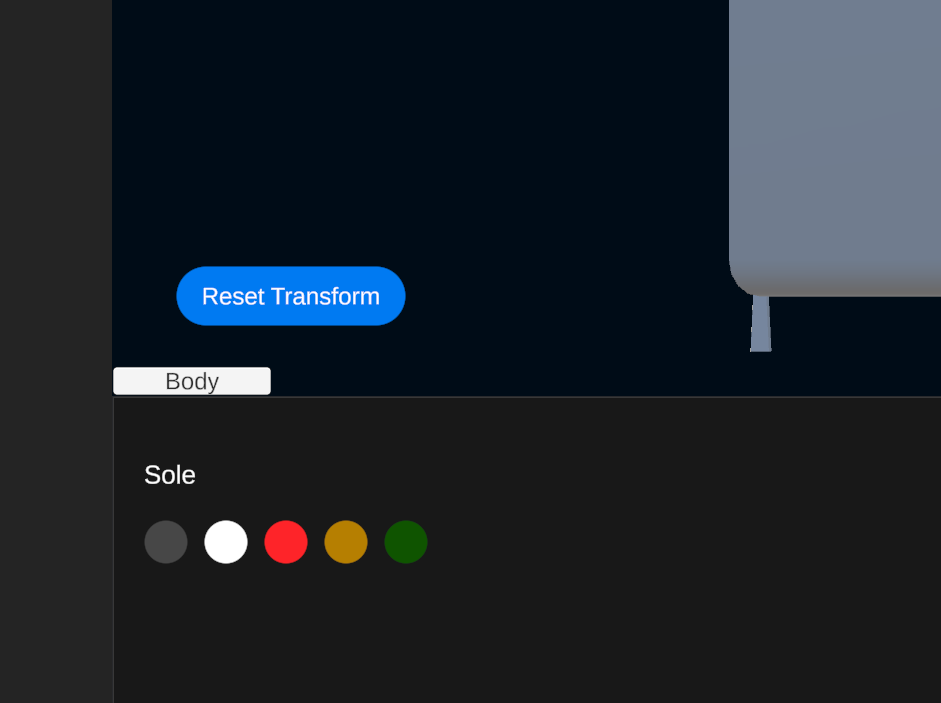
I'll go ahead and customize the button labeled Body.
(The other buttons already have Shapes 2D applied.)
Adding the Shapes 2D Component
Download and import it from the Asset Store.
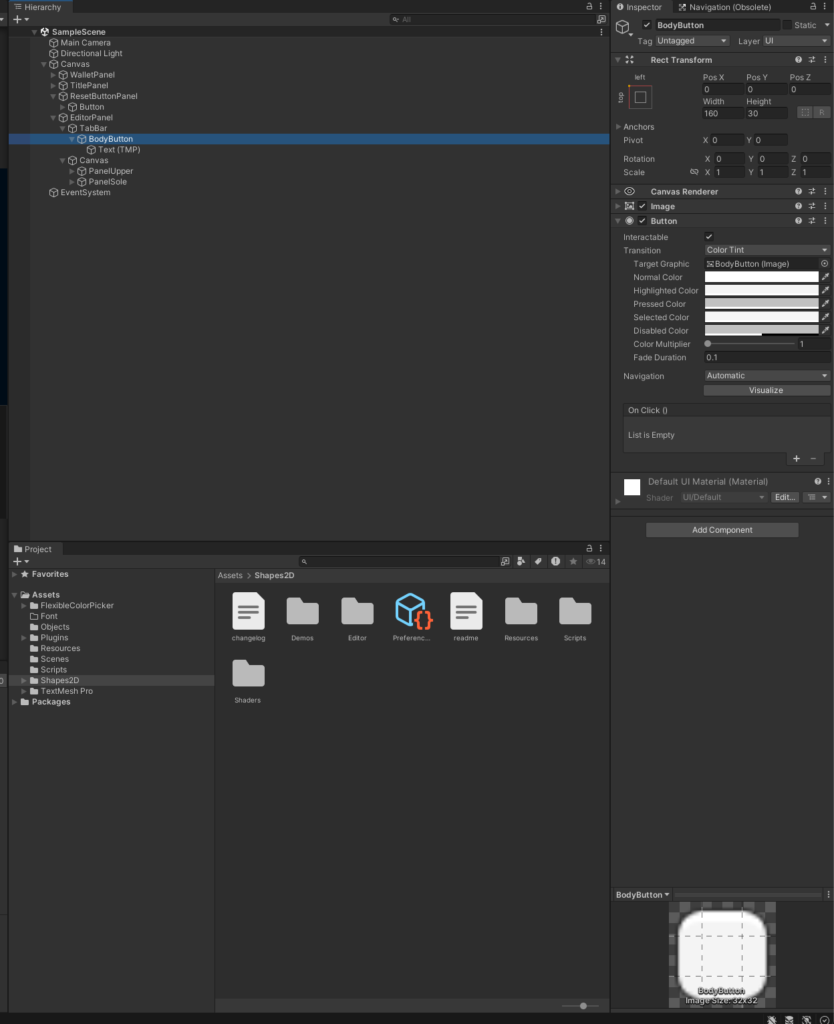
Next, select the object (button) you want to style from the Hierarchy.
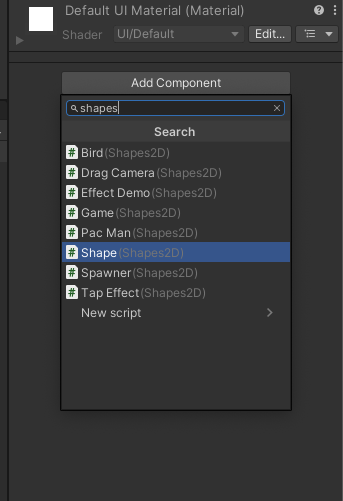
Then, in the Inspector panel, click the [Add Component] button and select [Shapes 2D].
Changing the Shape
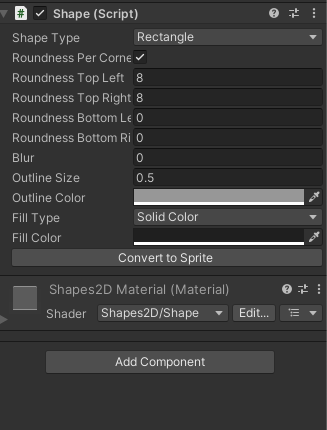
Set the shape Type to Rectangle as shown below, and if you check Roundness Per Corner, you can round only the top-left and top-right corners.
Using this component, you can also choose from various other shapes like pentagons, and rounding corners is easy to set up — so rather than for a rich, game-like UI, I think it's a great fit for things like web embeds or business/internal projects.
Summary
There's also UI Toolkit, which lets you build UI by writing code, so I'd like to give that a try as well.