
❓ Introduction
This post is for total beginners like me who are trying to seriously get into using Ubuntu, GUI and all.
I've put together a list of things I wish I'd done right from the start. It's mostly just citations of other people's work, so I feel a little bad about adding more clutter to the internet, but I'm keeping it here as a personal reference.
I've linked the reference sites I used, so check those out for the finer details.
🪴 Environment
Last updated as of 2024/12/30
- Distributor ID: Ubuntu
- Description: Ubuntu 24.04 LTS
- Release: 24.04
- Codename: noble
🧠 Good Things to Know
When you're new to Linux, pretty much everything is unfamiliar, which can be rough. Here are a few keywords worth knowing ahead of time.
- vi (used for editing text from the command line — nano is another option, but it's worth looking up how to use whichever one you pick ahead of time)
- chmod (for file and directory permissions)
- General CLI operations
🪑 What To Do
Automatic Login
Open Settings, then go to System/Users at the very bottom of the tab on the left.
You'll find an Automatic Login option there — turn it on.
If you're used to working on a computer with a monitor attached, not having a login screen can feel a bit unsettling. But once you start working remotely over SSH, automatic login is overwhelmingly more convenient.
From a security standpoint, this really just comes down to whether someone has physical access to the machine, so as long as you lock things down properly you should be fine (unless the environment where your Ubuntu box lives has people constantly coming and going).
Updating Packages
This is probably covered in every guide out there, but update your packages from the terminal.
sudo apt updateJapanese Input Support
Essential if you ever want to search for something or write in Japanese.
Fcitx5 seems to be the standard choice these days.
sudo apt install fcitx5-mozcUpdating Vim
The version of vi that ships with a fresh Ubuntu install is a lightweight build, so things like the arrow keys don't work.
apt-get install vimThis command should get you the "huge" build of vim.
Disabling Automatic Sleep
A must if you're planning to run this as a file server or similar.
sudo systemctl mask sleep.target suspend.target hibernate.target hybrid-sleep.targetRedisplaying the Screen After Unplugging/Replugging an HDMI Monitor
By default, Ubuntu won't redisplay anything after you unplug and replug a monitor.
This site's approach saved me: "Restoring the Display After an HDMI Disconnect on a LIVA (for Ubuntu 14.04)"
https://www.ekesete.net/log/?p=7730
xrandrvi ~/display_setup.shCreate a shell script and write the following into it.
#!/bin/bash
# This script automatically configures connected displays

xrandr --auto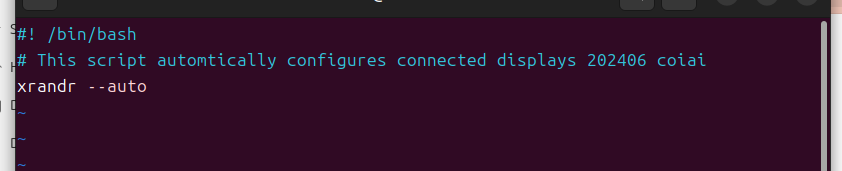
Once that's done, make the script executable. The +x option is what makes it executable.
sudo chmod +x ~/display_setup.shHave the script run automatically whenever the hardware is connected.
Using Udev
I couldn't quite get this working 💦
Let's try using udev. Udev handles device management, and it detects when new devices are connected or removed.
A rules file is a script that fires an event whenever a device is connected or disconnected.
sudo vi /etc/udev/rules.d/99-monitor-hotplug.rulesOnce vi opens, write the following.
Replace "your username" with your actual username.
ACTION=="change", SUBSYSTEM=="drm", RUN+="/home/あなたのユーザー名/display_setup.sh"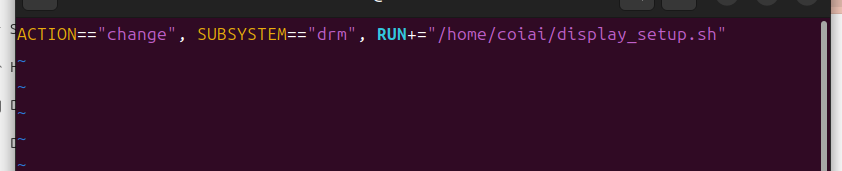
udevadm control is a command for managing the daemon's behavior. The command below reloads the udev rules.
sudo udevadm control --reload-rulestrigger fires a udev event for every device currently present on the system.
sudo udevadm trigger📗 Reference Sites
On Vi
https://massie0414.com/index.php/ubuntu/4660/
Personal notes on computing
https://ocg.aori.u-tokyo.ac.jp/member/daigo/comp/memo/?val=valid&nbr=2021052501