
😸 What This Is About
While importing photo data from an SD card into Lightroom Classic via my home server, I ran into the popup and error shown below.
書き込みが可能ではないため、保存先フォルダーにファイルをコピーできませんでした。(482)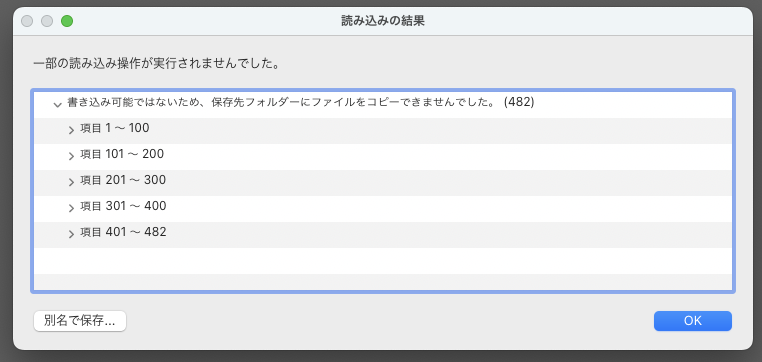
On top of that, no files were showing up under the Share entry in the left sidebar's folder list either.
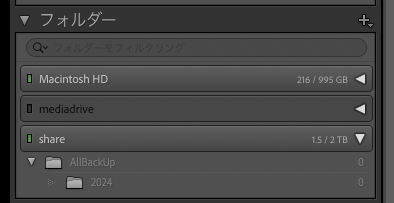
This post walks through how I resolved it.
🪴 Environment
Server side
- Distributor ID: Ubuntu
- Description: Ubuntu 24.04 LTS
- Release: 24.04
- Codename: noble
- samba
Mac
- Sonoma 14.5 (23F79)
- Apple M1
- 16GB
🛠️ Steps
First, check the folder's access permissions.
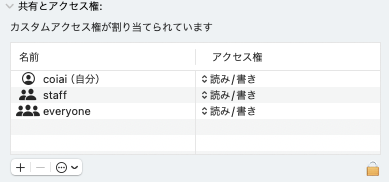
Right-click the folder in question and select "Get Info" — a window should pop up.
If it shows "Read only" here, go back and review the settings on the server side (Samba, etc.).
I struggled with this for a surprisingly long time, and just as I was about to give up and set up SCSI instead, I right-clicked the share (the name I'd configured on my home server) in the left-hand tab and clicked "Sync Folder" — and that fixed it.
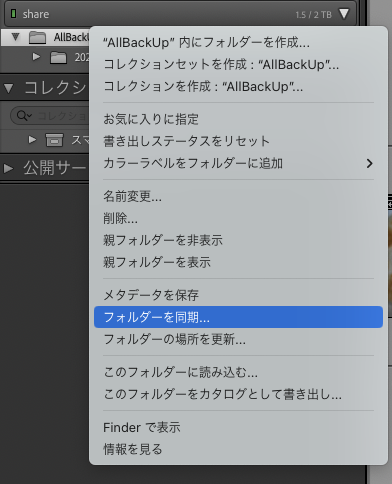
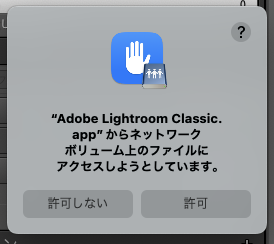
Clicking "Sync Folder" should bring up the popup shown in the next image.
The key seems to be granting Lightroom permission to access the network volume.
😒 If This Still Doesn't Fix It
At this point I was able to read from the folder, but I still couldn't write to it (i.e., import from the SD card to the server), so I went and checked the permissions on the Ubuntu side.
On Ubuntu, cd into the directory in question (in my case, all my photos live in a folder called AllBackup) and check the permissions.
You can check permissions with
ls -lThat's all it takes.
Checking this way, I found that only AllBackup had -xr permissions — in other words, write access was disabled.

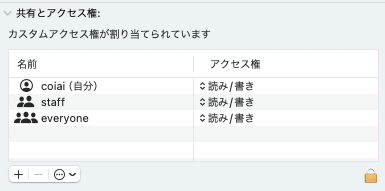
Get Info in the Mac Finder showed it as readable and writable, but that wasn't the case on Ubuntu — which is exactly why it took me so long to notice.
To change permissions for AllBackup and all of its subfolders at once, add the -R option to chmod.
sudo chmod -R 777 フォルダ名And that solved it!!!