
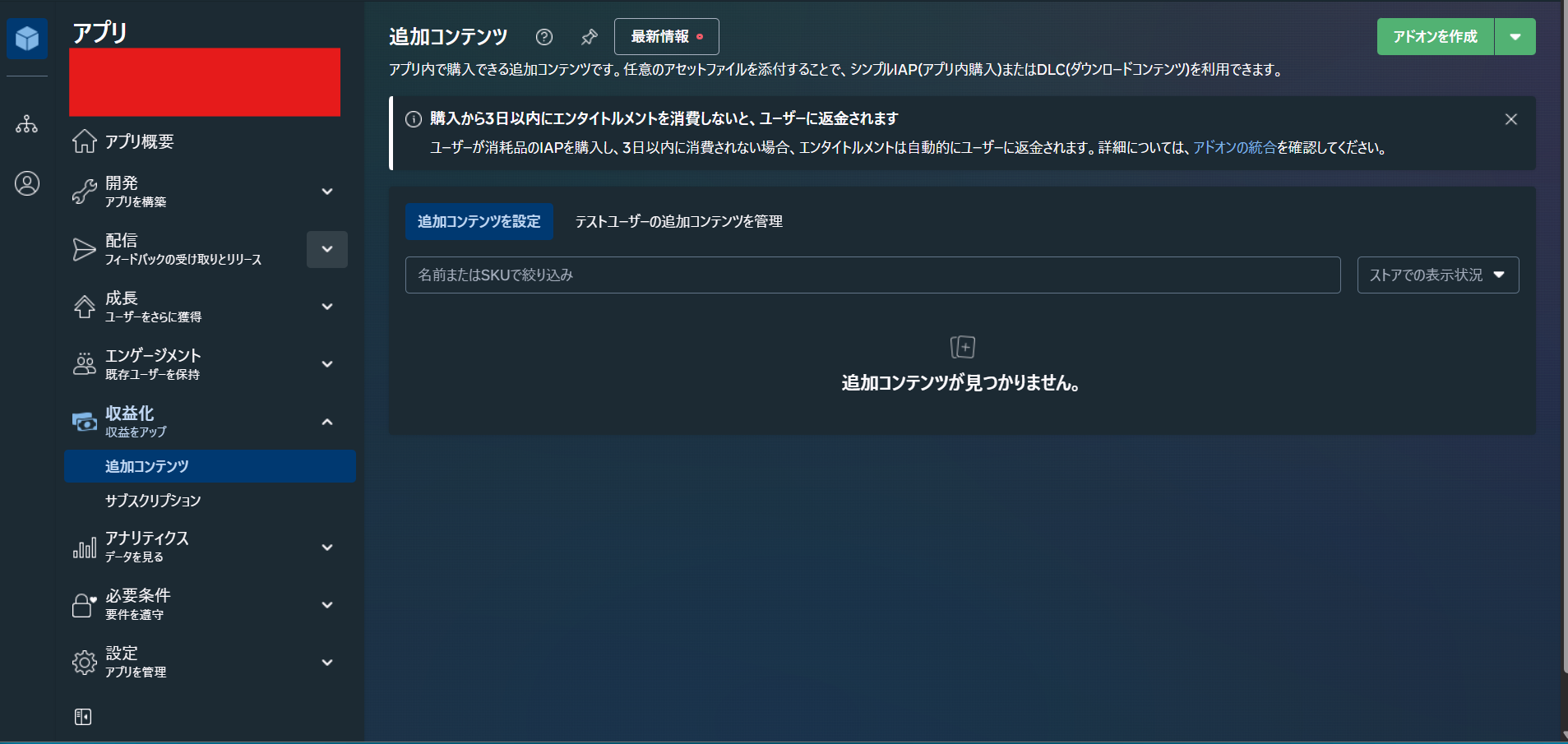
Here's how to implement content-type in-app purchases on the Meta Store.
Adding Content
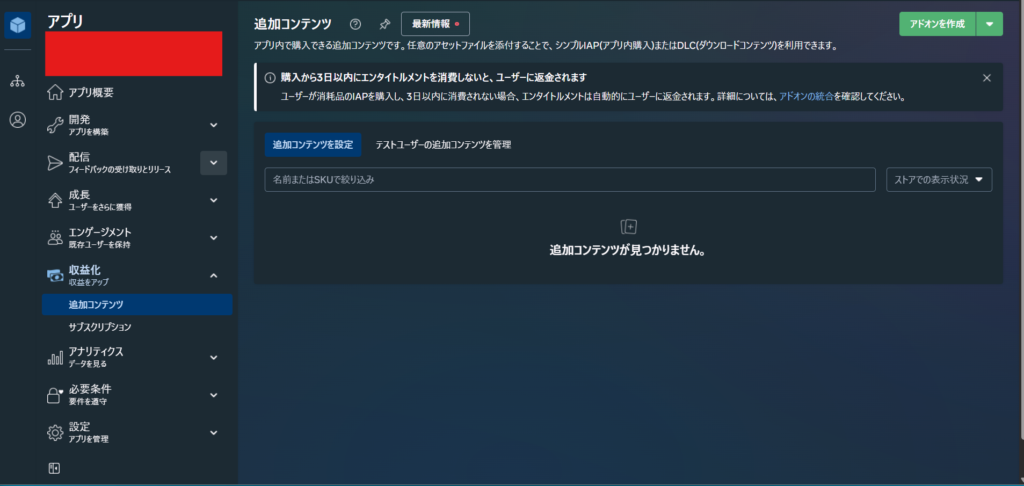
Click the Create Add-on button in the top right.
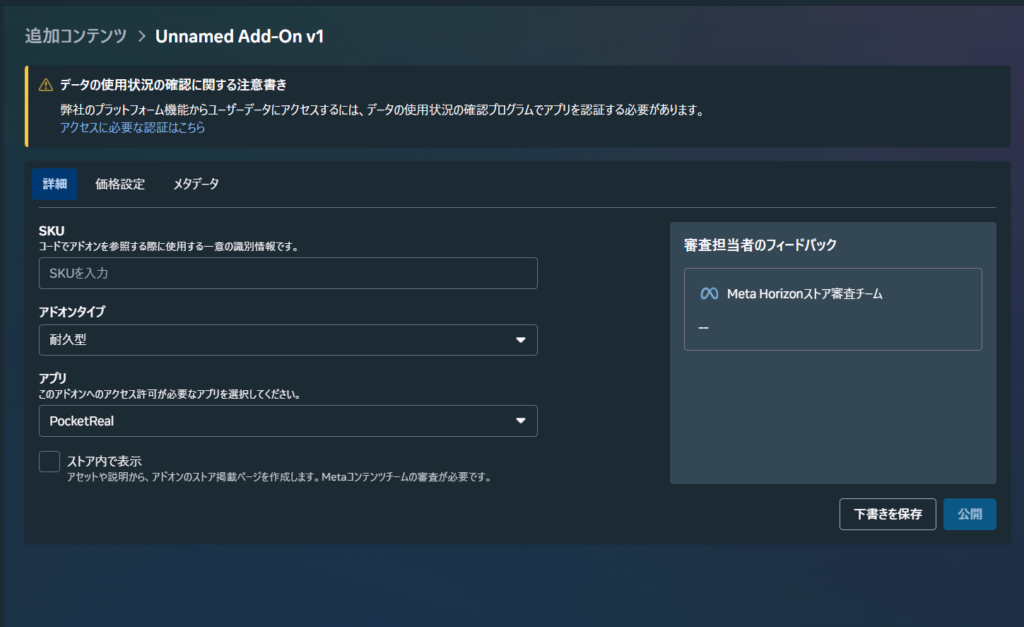
Add-on Type
If it's something users buy once and never buy again, choose Durable.
For consumables — like in-app coins or gems — choose Consumable.
Pricing
Head to the Pricing tab to set the content's price.
If you haven't registered any paid content yet, your payment information probably isn't set up, so you'll need to set that up first.
DUC (Data Use Checkup)
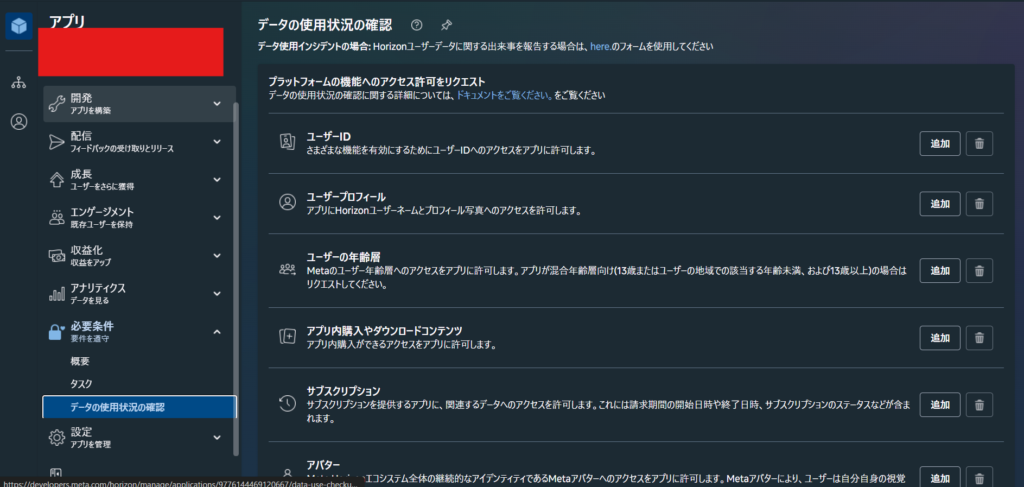
Under Requirements in the left menu, open Data Use Checkup.
For example, if you need to identify users for IAP, click the Add button next to User ID;
if you need usernames, click Add next to User Profile.
You'll be asked what it's used for and to describe the purpose, so write that in.
Once that's done, click the Submit Request button.
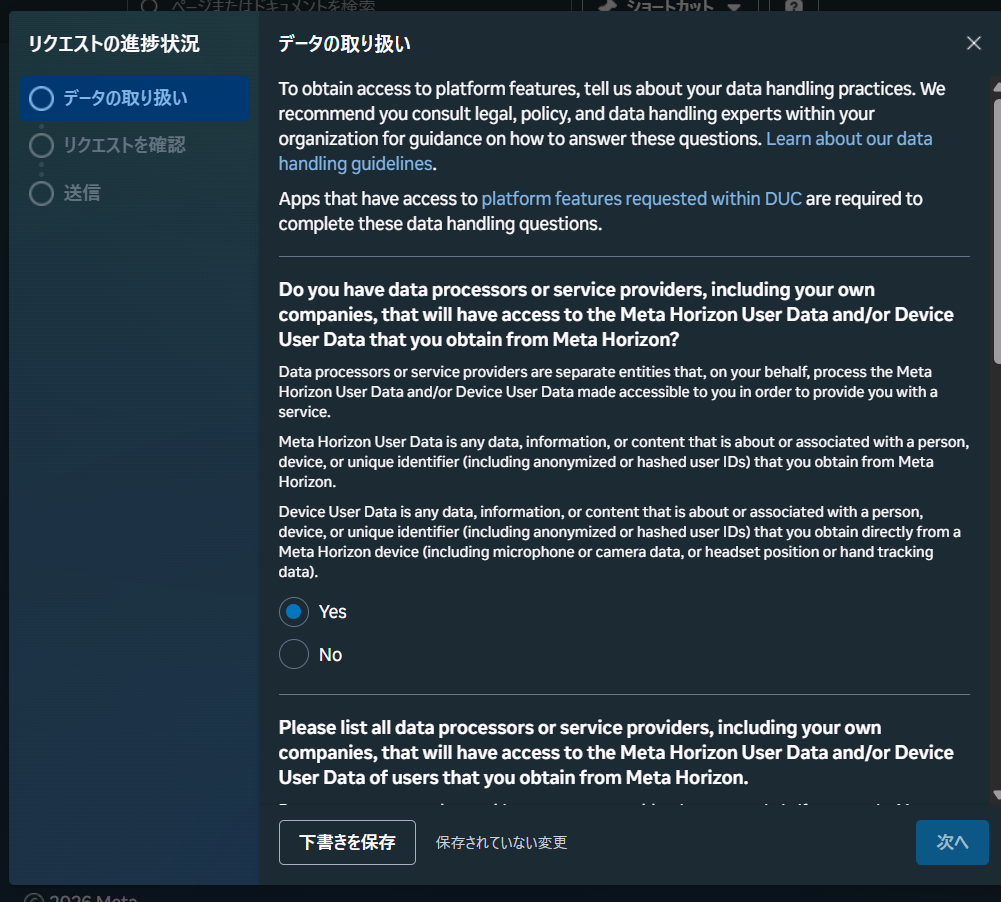
You'll be asked questions about your data handling like the ones below — answer them.
They're written in English, so here's a quick rundown of what each one is asking, in order.
- Do you use services like AWS or GCP? If you do, answer YES; if you only use local servers, answer NO
- If you answer YES here, you'll also need to provide the data processor's name, the service category, and the country
where the data processing takes place.
- If you answer YES here, you'll also need to provide the data processor's name, the service category, and the country
- Who's responsible for the data?
- What country are you located in?
- Have you provided user data to a public authority in the past 12 months?
- Your policy on data requests from public authorities
Checking the Data Use Status
From the left sidebar, click Requirements → Data Use Checkup.
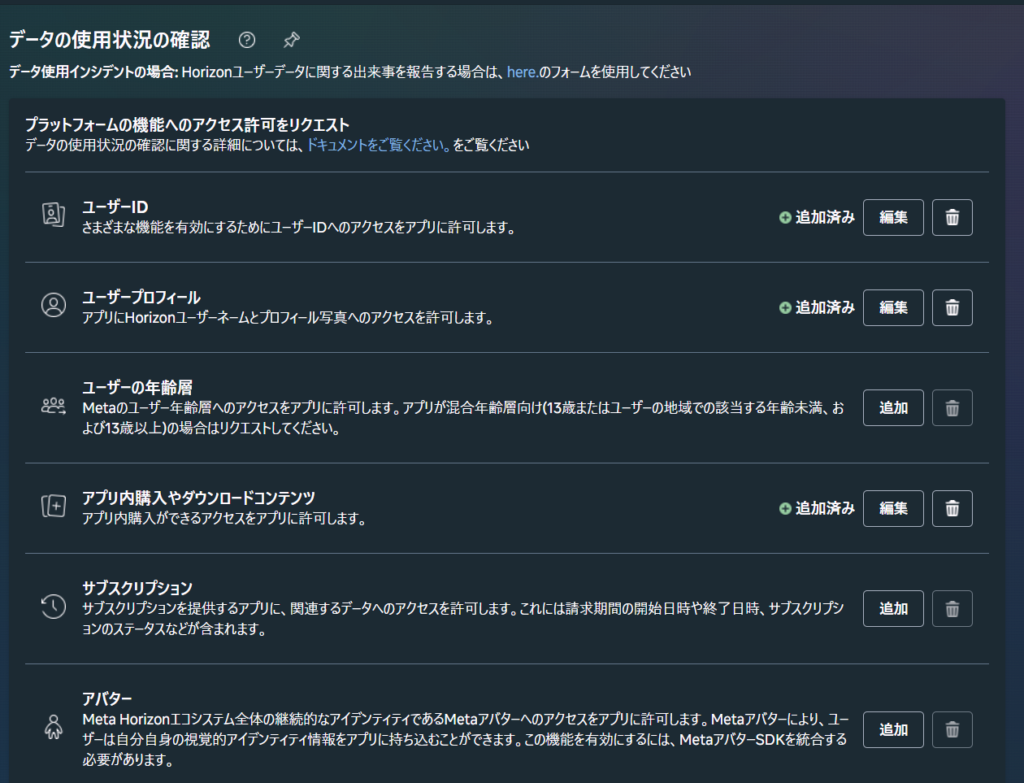
If this isn't set up, you'll see a popup with the following text.
アドオンデータの使用状況の確認が有効になっていません。To Everyone Reading This
At coiai, we also specialize in development for Quest, PCVR, and Vision OS. We handle new projects as well as cases where you need extra hands partway through an existing one — feel free to reach out!